

Get Started
Introduction
Section titled “Introduction”The SiteAssist Developer API provides programmatic access to integrate AI-powered chat assistants into your applications. The API allows you to embed intelligent chatbots on your websites and services, enabling seamless customer interactions powered by AI.
With the Developer API, you can:
- Initialize visitor sessions for chat interactions
- Create and manage conversations
- Send and receive messages with AI assistants
- Access conversation history
- Perform semantic search on your knowledge base
- Retrieve Q&A entries from your project
- Generate chat completions using configured assistants
To use developer API, you need to create API keys in the project dashboard.
Creating API Keys
Section titled “Creating API Keys”Follow these steps to create API keys for your project:
Step 1: Navigate to API Keys Dashboard
Section titled “Step 1: Navigate to API Keys Dashboard”- Go to your project dashboard in SiteAssist
- In the sidebar under Advanced, click on API Keys
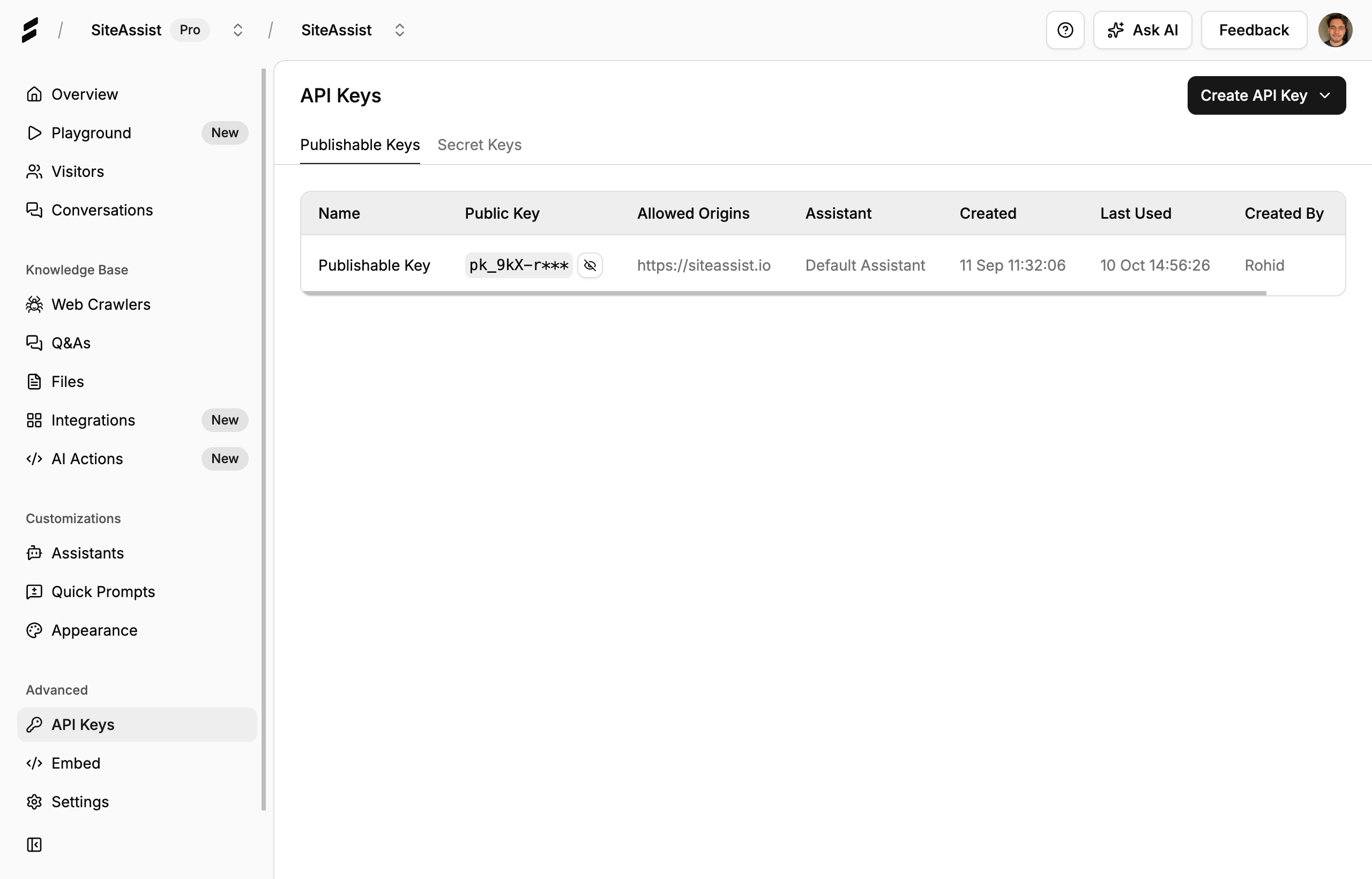
Step 2: Click Create API Key
Section titled “Step 2: Click Create API Key”In the top-right corner of the API Keys dashboard, click the Create API Key button. This will open a dropdown menu with two options:
- Publishable Key - For client-side applications
- Private Key - For server-side applications
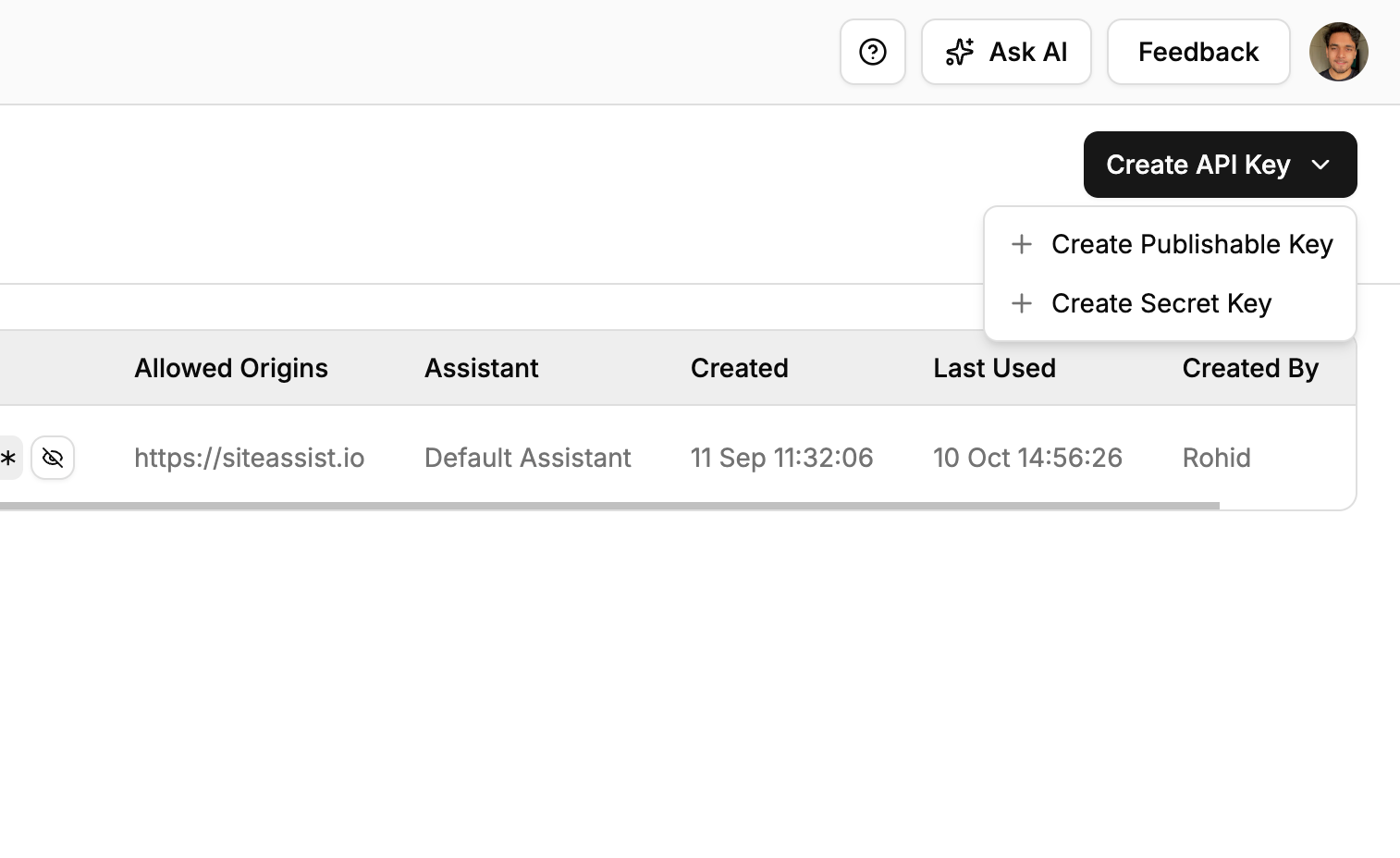
Step 3: Choose Your Key Type
Section titled “Step 3: Choose Your Key Type”Select the appropriate key type based on where you’ll use it:
Publishable Key
Section titled “Publishable Key”For client-side applications (websites, mobile apps):
-
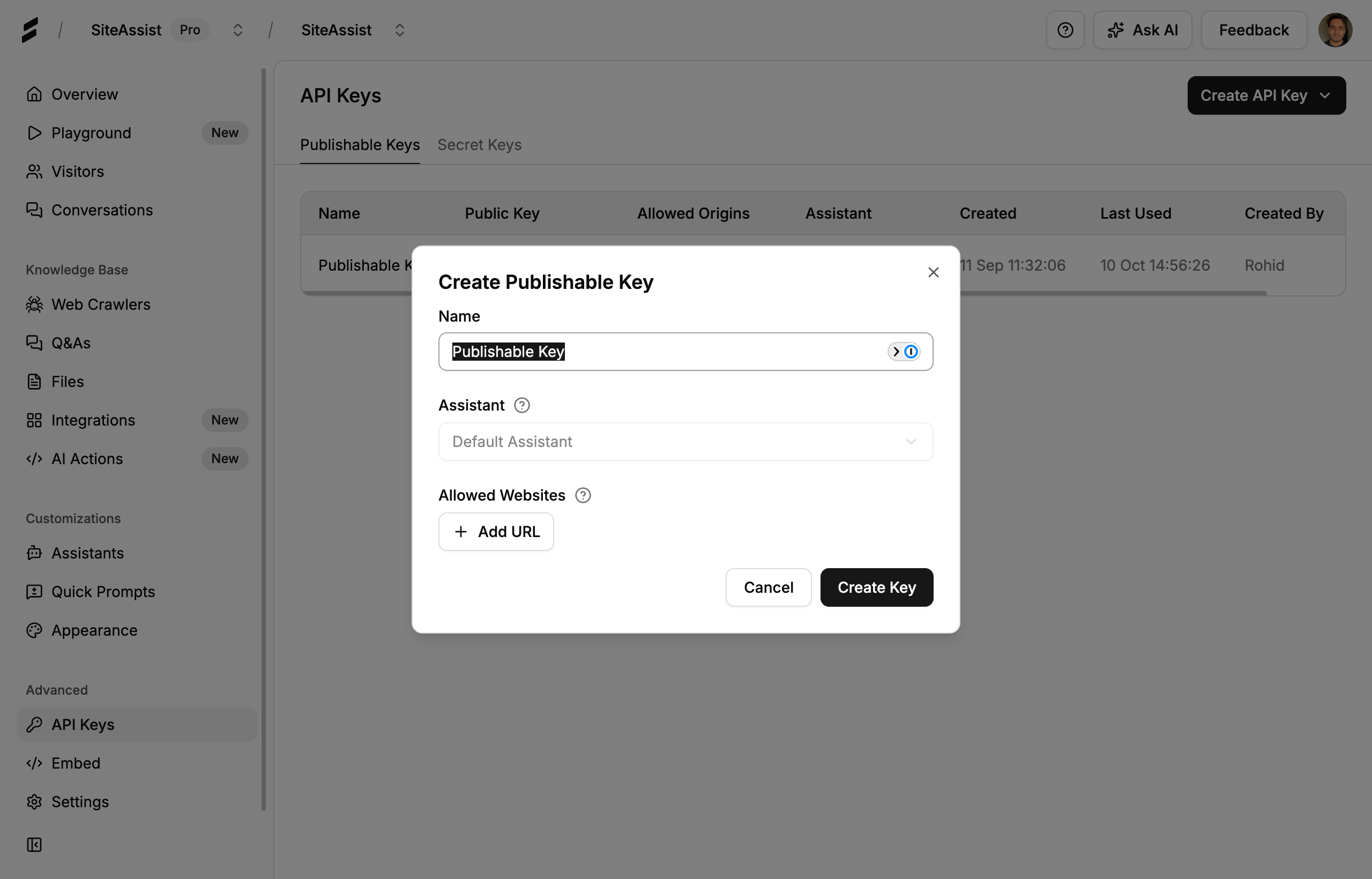
Select Publishable Key from the dropdown
-
Fill in the modal fields:
- Name: Give your key a descriptive name (e.g., “Production Website”, “Mobile App”)
- Assistant: Select which AI assistant this key will interact with
- Allowed Websites: Add the domains where this key will be used (e.g., “https://example.com”)
-
Click + Add URL to add multiple allowed domains
-
Click Create Key
Private Key
Section titled “Private Key”For server-side integrations:
-
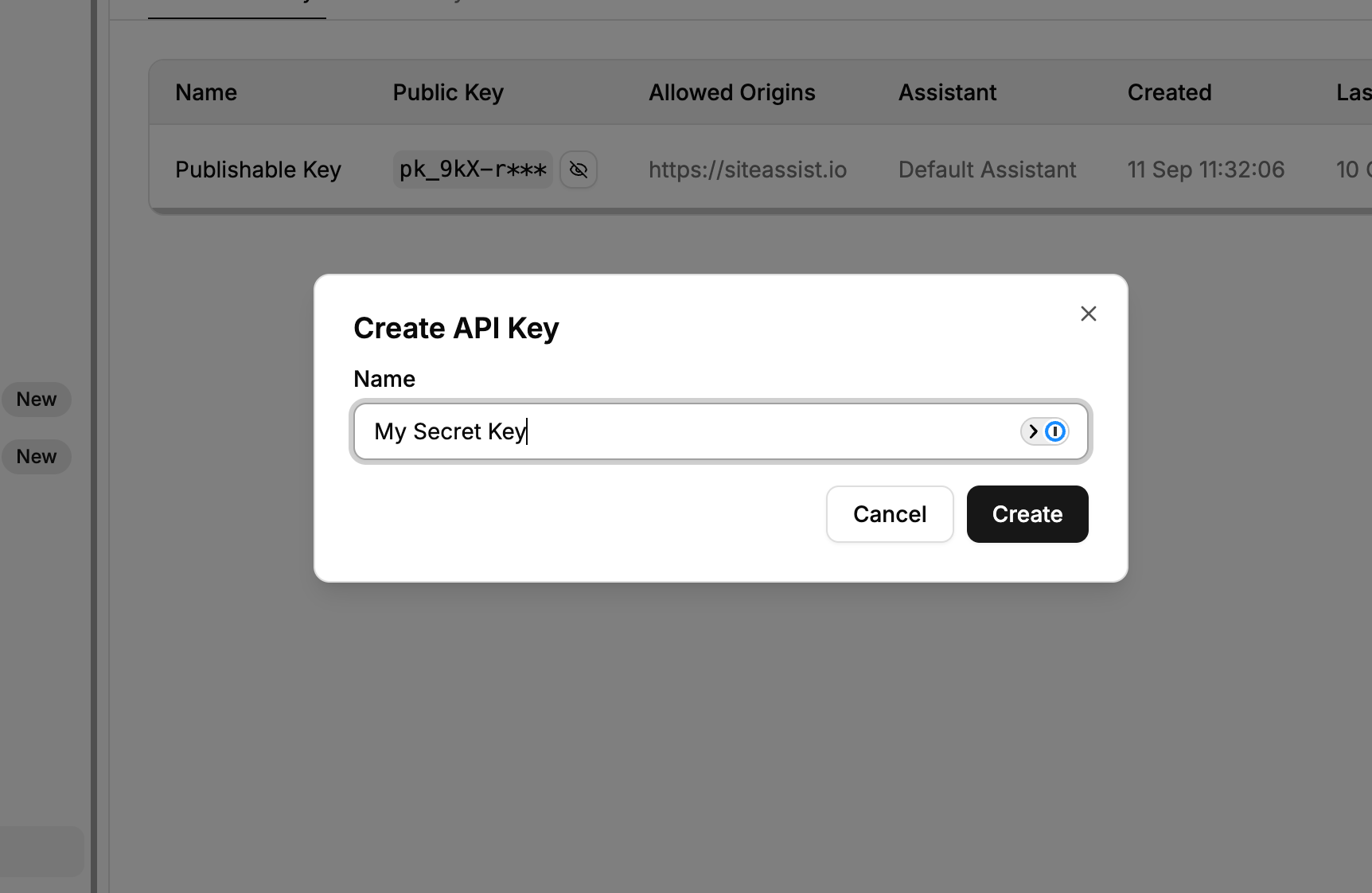
Select Private Key from the dropdown
-
Enter only:
- Name: Give your key a descriptive name (e.g., “Backend API Integration”, “Analytics Service”)
-
Click Create
-
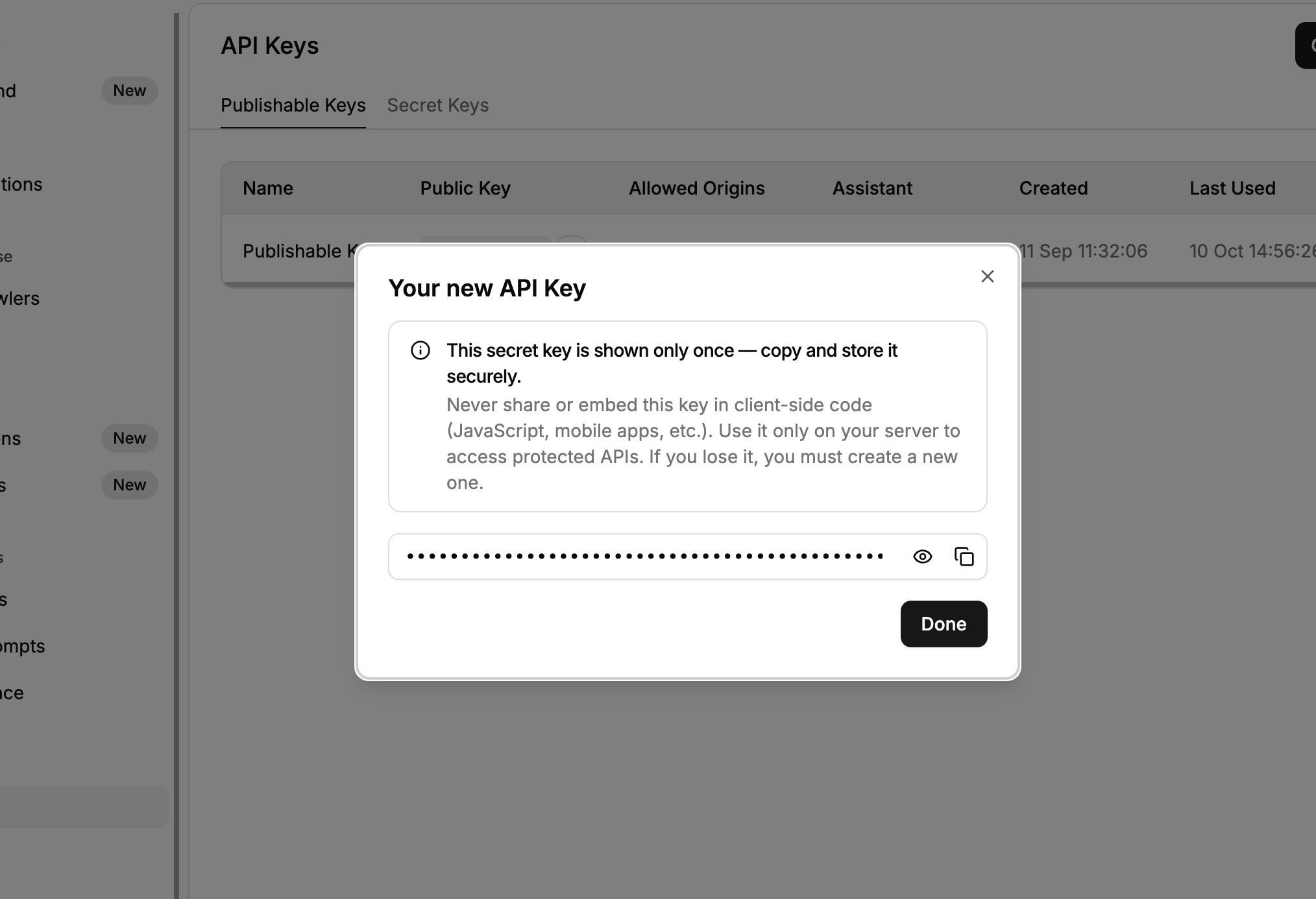
Save Your API Key
After creating your key, a modal will display your new API key.
Revoking API Keys
Section titled “Revoking API Keys”If an API key is compromised or no longer needed:
- Locate the key in the API Keys dashboard
- Click the actions menu (⋯) for that key
- Select Revoke Key
- Confirm the action
Need Help?
Section titled “Need Help?”We’re here to help you succeed! Whether you have questions, need assistance with setup, or want to discuss advanced use cases, our team is ready to provide personalized support.
Contact us: support@siteassist.io
We’d love to hear about your use case and help you get the most out of SiteAssist!